Samsung GU43DU7170U - Manuale del telecomando
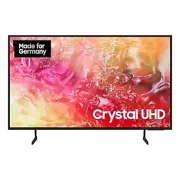
Samsung GU43DU7170U – Manuale del telecomando, leggi gratuitamente online in formato PDF. Speriamo che questo ti aiuti a risolvere eventuali dubbi. Se hai ulteriori domande, contattaci tramite il modulo di contatto.

|Italiano
Informazioni sui tasti del telecomando
(Accensione)
Premere per accendere e spegnere il televisore.
(Impostazioni / Numero / Tasto opzione)
È possibile accedere direttamente al menu Impostazioni / tastierino numerico virtuale / tastierino delle opzioni / SmartThings.
•
L'accesso all'app SmartThings tramite questo tasto potrebbe non essere supportato, a seconda del modello.
•
Usare questo tasto per accedere a ulteriori opzioni specifiche per la funzione utilizzata.
•
Premere per richiamare il tastierino numerico sullo schermo. Utilizzare il tastierino numerico per digitare valori numerici. Selezionare i
numeri, quindi selezionare
Fatto
o
Inserire numero
per inserire un valore numerico. Usare per cambiare il canale visualizzato, digitare un
PIN, un CAP, ecc.
•
Premendolo per 1 o più secondi, viene visualizzato il menu
Collegamento
.
(Tasto Colore)
Se premuti, i tasti colorati vengono visualizzati sullo schermo. Usare questo tasto per accedere a ulteriori opzioni specifiche per la funzione
utilizzata.
1
Tasto direzionale (su, giù, sinistra, destra)
Sposta il focus e cambia i valori nel Menu TV.
2
Selezione
Seleziona o esegue un elemento evidenziato. Se premuto durante la visione di un programma, ne visualizza le informazioni dettagliate.
(Ritorna)
Premere per tornare al menu precedente. Se premuto per 1 o più secondi, la funzione in esecuzione viene terminata. Se premuto durante la
visione di un programma, visualizza il canale precedente.
(Smart Hub)
Premere per passare a Schermo Principale.
(Riproduci/pausa)
Se premuto, compaiono i controlli di riproduzione. Usando questi controlli, è possibile controllare la riproduzione dei contenuti.
(Volume)
Spostare il tasto Su o Giù per regolare il volume. Per escludere l'audio, premere il tasto. Se premuto per 2 o più secondi, viene visualizzato il
menu
Collegamenti di accessibilità
.
(Canale)
Spostare il tasto Su o Giù per cambiare il canale visualizzato. Per visualizzare la schermata della
Guida
, premere il tasto.
•
Se premuto per 1 o più secondi, viene visualizzata la schermata
Elenco canali
.
3
Tasto di avvio della app
Premere ogni tasto per provarne la funzione.
•
Le app disponibili possono differire in base all'area geografica di appartenenza o al fornitore di contenuti.
– Le immagini, i tasti e le funzioni del telecomando possono variare in base al modello o all'area geografica.
– Usando il telecomando fornito in dotazione con il TV per controllare un altro TV, alcune funzioni potrebbero non funzionare regolarmente.
|Nederlands
De knoppen op de afstandsbediening
(In-/uitschakelen)
Hiermee schakelt u de tv in en uit.
(Instellingen / Cijfer / Optie toets)
U hebt rechtstreeks toegang tot het menu Instellingen / virtueel numeriek toetsenbord / optiepaneel / SmartThings.
•
Toegang tot de SmartThings-app met deze toets wordt mogelijk niet door alle modellen ondersteund.
•
Gebruik deze toets voor toegang tot aanvullende opties die specifiek zijn voor de gebruikte functie.
•
Druk op de knop om het virtuele numerieke schermtoetsenbord weer te geven. Voer numerieke waarden in met behulp van het
numerieke toetsenbord. Selecteer de cijfers en selecteer vervolgens
Gereed
of
Nummer invoeren
om een numerieke waarde in te voeren.
Gebruik deze functie om het kanaal te wijzigen, een Pincode of postcode in te voeren, enzovoort.
•
Als u de toets 1 seconde of langer ingedrukt houdt, wordt het menuscherm
Snelkoppeling
weergeven.
(Knop Kleur)
Wanneer u op deze knop drukt, worden gekleurde knoppen op het scherm weergegeven. Gebruik deze toets voor toegang tot aanvullende
opties die specifiek zijn voor de gebruikte functie.
1
Richtingsknop (omhoog, omlaag, links, rechts)
Hiermee verplaatst u de aanwijzer en wijzigt u de waarden die in het menu van de televisie worden weergegeven.
2
Selecteren
Hiermee selecteert u een gemarkeerd item of voert u het uit. Als u tijdens het kijken naar een programma op deze toets drukt, wordt er
gedetailleerde programma-informatie weergegeven.
(Terug)
Indrukken om terug te keren naar het vorige menu. Als u de toets 1 seconde of langer ingedrukt houdt, wordt de huidige functie beëindigd.
Wanneer u tijdens het kijken naar een programma op deze toets drukt, wordt het vorige kanaal weergegeven.
(Smart Hub)
Druk hierop om te schakelen naar het startscherm.
(Afspelen/Pauze)
Als u op deze toets drukt, wordt de afspeelbesturing weergegeven. Deze bedieningselementen kunt u gebruiken om de mediainhoud te
bedienen die wordt afgespeeld.
(Volume)
Beweeg de toets omhoog of omlaag om het volume aan te passen. U kunt het geluid dempen door op de toets te drukken. Als u de toets 2
seconden of langer ingedrukt houdt, wordt
Snelkoppelingen voor Toegankelijkheid
weergegeven.
(Kanaal)
Beweeg de toets omhoog of omlaag om het kanaal te wijzigen. Druk op de toets om de
Gids
weer te geven.
•
Als u de toets 1 seconde of langer ingedrukt houdt, wordt het scherm met de kanalenlijst weergegeven
Kanalenlijst
weergegeven.
3
Knop App starten
Druk op elke knop om de bijbehorende functie uit te voeren.
•
Beschikbare apps kunnen verschillen, afhankelijk van de regio of de inhoudsaanbieder.
– De afbeeldingen, toetsen en functies van de afstandsbediening kunnen per model of regio verschillen.
– Als u de afstandsbediening die bij uw tv wordt geleverd gebruikt om een andere tv te bedienen, werken sommige functies mogelijk niet
goed.
"Caricamento delle istruzioni" significa che è necessario attendere finché il file non è caricato e pronto per la lettura online. Alcune istruzioni sono molto grandi e il tempo di caricamento dipende dalla velocità della tua connessione a Internet.
Questo manuale ti è stato utile?
Informazioni su questo manuale
- Marca
- Samsung
- Modello
- GU43DU7170U
- Tipo di documento
- Manuale del telecomando
- Lingua/e
- Tedesco, Inglese, Francese, Italiano, Dutch
- Pagine
- 1
- Dimensione file
- 164,4 KB
- Formato
Altre istruzioni per Samsung GU43DU7170U
Fai una domanda
Manuali correlati
Altri Samsung più popolari


Altri modelli Samsung Altri
 Samsung GU32T5379CD Manuale del telecomando
 Samsung GU43AU6979U Manuale del telecomando
 Samsung GU43BU8589U Manuale d'uso
 Samsung GU43CU6979U Manuale del telecomando
 Samsung GU43CU7179U Manuale del telecomando
 Samsung GU43CU8079U Manuale d'uso
 Samsung GU43DU7179U Manuale del telecomando
 Samsung GU43DU7199U Manuale del telecomando
 Samsung GU43DU8079U Manuale d'uso
 Samsung GU43DU8579U Manuale d'uso
 Samsung GU50AU6979U Manuale del telecomando
 Samsung GU50BU8079U Manuale del telecomando